By Tojo7 min read
You downloaded a mockup, opened the file, and Photoshop treated it differently than you expected. That's usually the moment someone searches psd vs psdt and wants a straight answer instead of a wall of technical jargon. Both file types live inside Photoshop, but they behave in ways that matter the second you start customizing a design.
Here's the short version: a PSD is a standard editable Photoshop document that saves changes directly into the same file, while a PSDT is a Photoshop template file that forces you to open a fresh, untouched copy every time and save your edits separately. That distinction protects the original layout from accidental overwrites, which is exactly why so many mockup creators package their layered PSD templates as PSDT files instead.
In this article, you'll get a clear breakdown of what separates the two formats, how to open and edit a PSDT without breaking anything, and when you'd actually choose one over the other for your own apparel mockups, product renders, or client presentations.
Why the PSD vs PSDT distinction matters
Designers run into trouble when they treat a PSDT like a regular PSD and edit it directly, then wonder why the file behaves oddly the next time they open it. File overwrite protection is the whole point of the PSDT format. When you double-click a PSDT, Photoshop doesn't open the actual template file. It opens an untitled copy of it. That means you can rearrange layers, swap smart objects, and change colors as much as you want without ever touching the master file the mockup creator built. If you're producing dozens of variations for different clients or product colorways, that safeguard saves you from accidentally destroying the one clean version you'll need again next week.
Where a standard PSD falls short
Contrast that with a standard PSD, where
every save writes directly to the same file you opened. Convenient for a one-off project, but risky for anything you plan to reuse. Say you buy a suit jacket mockup meant to serve as a base for twenty different fabric patterns. Open it as a PSD, save your first pattern, and you've permanently altered the source. Open it as a PSDT, and you get a fresh, pristine copy every single time you launch it, no matter how many versions you've already created.
A PSDT protects your master file by design, while a PSD trusts you to protect it yourself.
This matters even more for teams. If you share a template file with a colleague or a client's in-house designer, a PSDT guarantees they can't accidentally corrupt the version everyone else depends on. A PSD offers no such guarantee. Anyone who opens it and hits Ctrl+S has changed the original, sometimes without even realizing it. For mockup libraries in particular, where the same base file might be reused hundreds of times across different projects, that built-in protection isn't a minor technical footnote. It's the reason serious template creators choose PSDT over PSD in the first place, and it's the reason understanding the psd vs psdt difference actually changes how you work day to day.
How to open, edit, and save a PSDT file in Photoshop
Opening a PSDT is different from double-clicking a normal file, and knowing the steps up front saves you from confusion later. Photoshop automatically generates an untitled duplicate the moment you open the template, so the original PSDT stays locked away untouched. Here's the basic workflow:
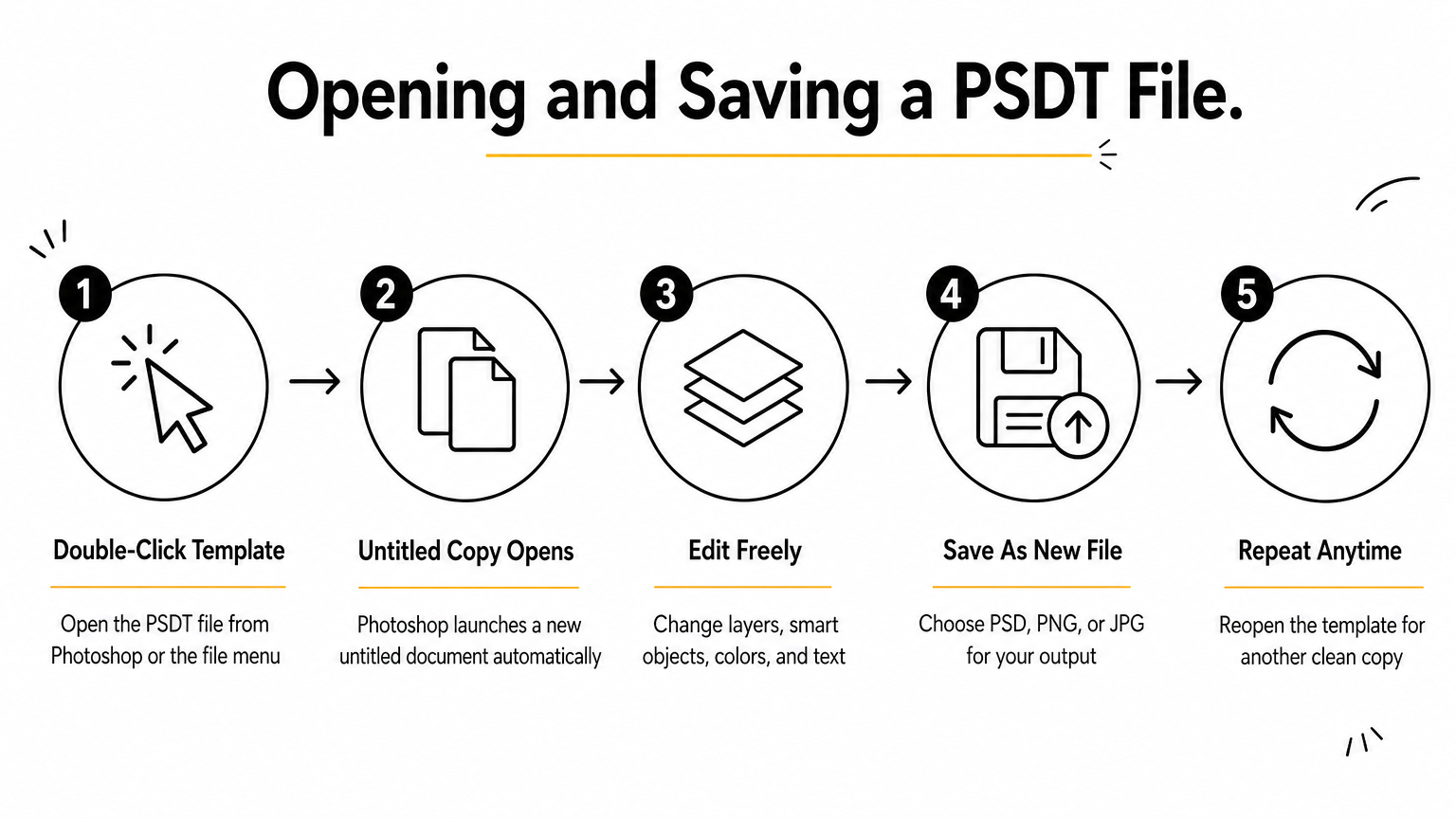
- Double-click the PSDT file, or open it from Photoshop's File menu.
- Photoshop launches a new document titled something like "Untitled-1" instead of the template's actual filename.
- Edit the layers, smart objects, colors, or text exactly as you would in any PSD.
- Use File > Save As to save your work, choosing PSD, PNG, JPG, or another format for the final output.
- Repeat from step one whenever you need another clean copy of the same mockup.
How saving works in a PSD vs PSDT workflow
Saving works differently too.
Standard Ctrl+S behavior doesn't apply the same way, since there's no original file path tied to your working document. You'll always land in the Save As dialog on your first save, which forces you to pick a new name and location rather than risk overwriting anything.
Every time you open a PSDT, you start from zero, and that's the entire point.
Getting comfortable with Save As as your default habit, rather than a quick Ctrl+S, matters more with template files than with any other format you'll touch in Photoshop.
PSD vs PSDT: key differences at a glance
Sometimes a side-by-side comparison clears up more than three paragraphs of explanation ever could. Behavior on open is the single biggest difference between the two formats, but there's more going on under the hood that affects how you work day to day.
| Aspect | PSD | PSDT |
|---|---|---|
| Opens as | The actual file itself | An untitled copy |
| First save | Overwrites the original | Forces Save As |
| Best for | One-off edits, finished art | Reusable mockups, templates |
| Risk of accidental overwrite | High | Low |
| File extension | .psd | .psdt |
| Layer/smart object support | Full | Full |
What stays the same in both formats
Looking at that table, you'll notice
the core Photoshop features, layers, smart objects, adjustment layers, blend modes, work identically in both formats. Layer and smart object support never changes based on file extension. What changes is purely the file-handling behavior around opening and saving, which is why a PSDT can hold the exact same complex mockup structure as a PSD without sacrificing any editing power.
The features are identical; only the safety net around your master file changes.
Getting these differences confused is easy since Photoshop's toolbar and menus look identical either way. The file extension itself is often the only visual clue you're working with a template rather than a standard editable file, much like the PSD vs PSB distinction, so it pays to glance at the filename before you start customizing anything.
Which format to use for mockups, templates, and client work
Picking between the two formats comes down to one question: will this file get opened more than once by more than one person? If you're delivering finished art, a flattened composite for a single client invoice, or a one-time social post, a standard PSD works fine. There's no reuse risk because nobody's going back to that file for a second version.
Mockup work is a different story. When you sell or distribute a PSD mockup template for suits, hoodies, or dress shirts, you want every buyer to start from an identical, untouched base. That's why the templates you'll find across ShirtsMockup's apparel mockup PSD library ship in a template-friendly structure designed to survive dozens of edits without corrupting the master layout. A designer customizing a lapel color for one client shouldn't accidentally strip out the smart object another client needs next week.
Use PSD for one-and-done work, and reserve PSDT for anything you expect to reuse.
PSD vs PSDT for client work
Client work sits in the middle.
If you're building a custom presentation deck for a single brand, PSD keeps things simple. But if that same brand asks for five colorway variations of the same jacket render, treating your base file like a template protects you from your own workflow, which is worth knowing alongside the difference between a template and a mockup. Save your master as a PSDT, and you'll never worry about which "final" version is actually the original.
Choosing the right format for your next design
Getting the PSD vs. PSDT question right comes down to protecting your work from yourself. A standard PSD suits finished art you'll never revisit, while a PSDT template file shields your master layout from every future edit, no matter how many colorways or clients you run through it. Once you've opened a PSDT and watched Photoshop hand you a fresh untitled copy instead of the original, the logic clicks into place and you won't want to go back to unprotected files for reusable work.
If you're building out a library of formalwear presentations, that protection matters even more, since one corrupted base file can cost you hours of rework. Rather than rebuilding your own template structure from scratch, grab a ready-made, layered file like this editable men's peak lapel jacket mockup template and start swapping fabrics on a mockup built to survive dozens of edits without breaking.
Comments
No comments yet. Start the conversation.